A PDF reader with the everyday tools. No ads
PDF Workpad opens your PDF files for comfortable reading. Sign and mark them, merge, compress and organise pages when you need to. No ads, no account, and your files never leave your phone.
For Android 7.0 and later.
Try it right here
A small model of the app with a made-up document in English. Search for a word, switch to night mode, merge two files.
Weekend trail guide
Before you go
Pick a trail that fits the slowest walker in the group. Print the map or keep it on your phone, and mark the places where you can refill water.
Pack light: one litre of water for every two hours, a paper map as a spare, and a warm layer even in summer.
Tell someone which trail you chose and when you plan to be back.
On the way
Check the map at every junction. If the trail markers stop, walk back to the last one you saw.
Drink water before you feel thirsty, rest in the shade at midday, and leave the trail as you found it.
Turn around at the time you agreed, even when the top looks close.
- No ads
- No account
- Works offline
- Free
- In ten languages
What you can do with it
Real screens from the app, with made-up sample files. The app has ten languages; the screens show English.
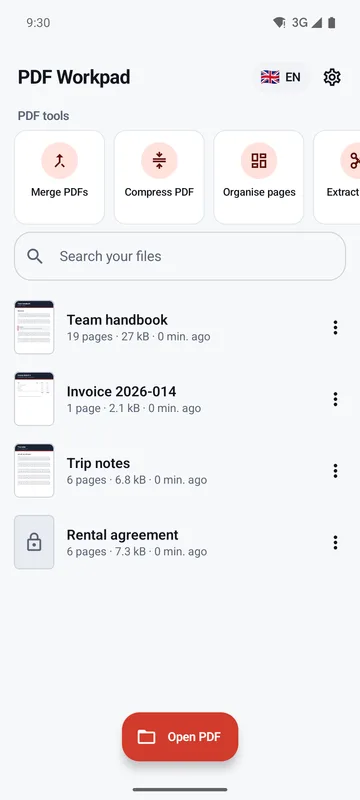
Recent files
The files you opened are on the home screen, with the tools one tap away. Pin the ones you use most; each opens where you stopped.
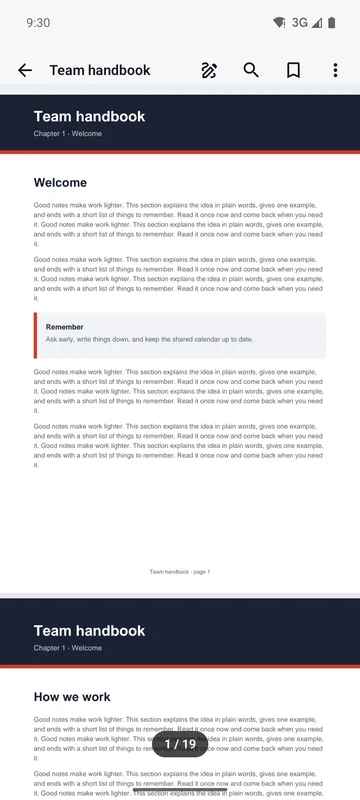
Read comfortably
Smooth scrolling, pinch and double-tap zoom. On tablets and in landscape, two pages side by side.
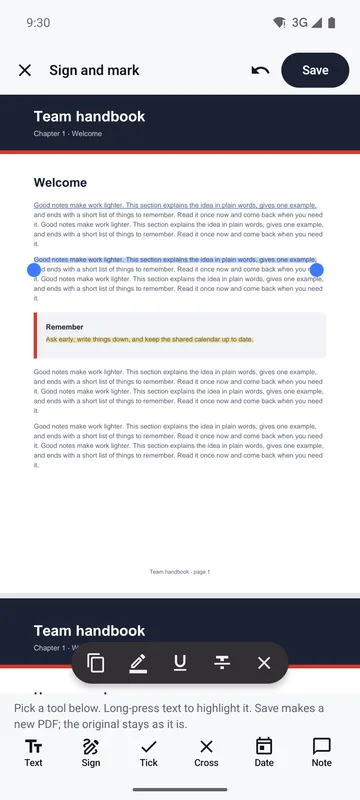
Highlight and add notes
Long-press text to select it, then copy, highlight, underline or strike it through. Add notes, or draw with a pen or marker. Share all notes and highlights as text.
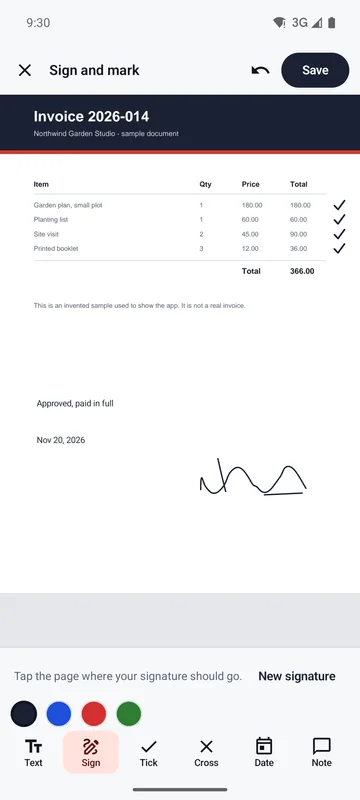
Sign and fill in
Sign with your finger; your signature stays only on your phone. Fill in forms with text, ticks, crosses and dates.
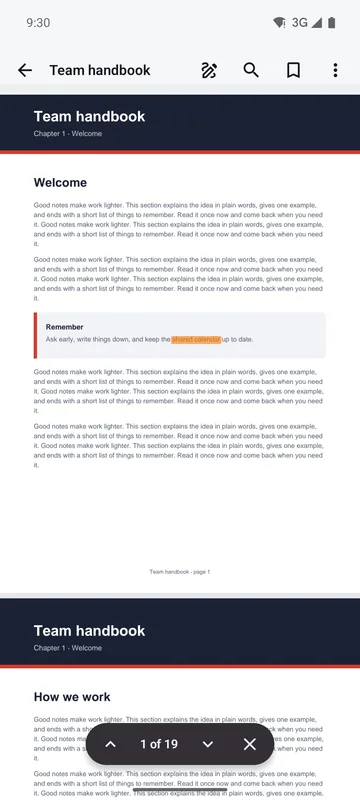
Search and find your place
Search any word; matches are highlighted on the page. Jump with the table of contents, bookmarks, go to page or links in the PDF.
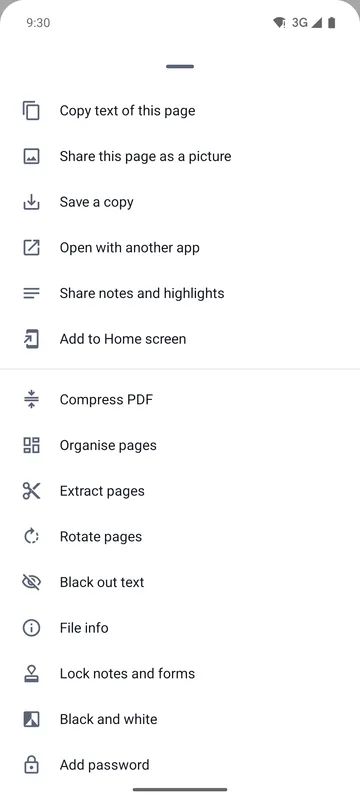
Share, print and more
Share the file or one page as a picture, print, or save a copy wherever you choose. Edit the file info or make a black and white copy.
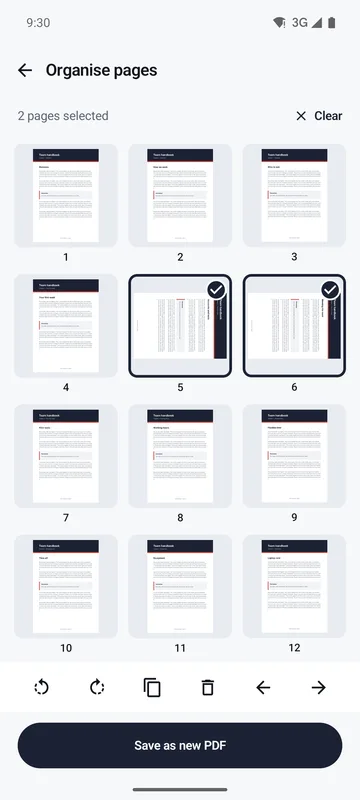
Organise pages
Reorder, turn, duplicate or delete pages, or add the pages of another PDF. Extract the pages you need as a new PDF.
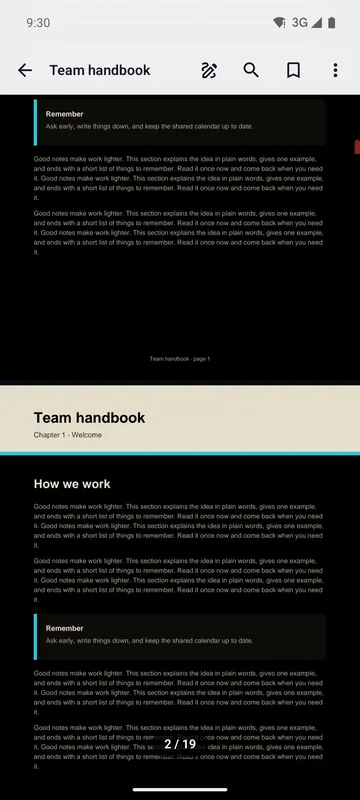
Night mode
Dark pages for reading at night. Auto-scroll, trim white edges and keep the screen on while you read.
Everyday jobs, done on your phone
Merge PDFs
Join several PDFs into one, in the order you choose.
Compress a PDF
Make a PDF smaller so it is easier to send: the pictures inside it get lighter, at one of three levels.
Pictures to PDF
Make a PDF from photos or pictures, one per page.
Black out text
Cover names or numbers with black boxes, or black out every place a word appears. The text under them is really gone.
Passwords and locks
Open protected PDFs; the password is never saved. Add a password (AES-256) or remove one you know. Lock notes and forms so they can't be changed, and lock the app with your fingerprint or screen lock.
Saving your marks and every tool make a new PDF. Your original file is never changed.
All of it works on your phone, even without internet.
Your files never leave your phone
PDF Workpad opens your PDFs and makes new ones on your phone. There is no account to sign in to and no server to upload them to. A file goes somewhere else only when you share it, print it, open it in another app or save a copy somewhere else yourself.
No ads
The app shows no advertising. Not under the page, not between files.
No account
Nothing to sign up for. Open the app and pick a file.
Statistics are your choice
The app can send usage statistics and crash reports so we can fix problems. They never include your files, their names or their text. In the European Economic Area, the UK, Switzerland, Moldova and Türkiye the app asks first, and everywhere you can switch them off in Settings.
The details are in the privacy policy and on the cookies and tracking page.
Questions
Is PDF Workpad free?
Yes. Everything in the app is free today, nothing is sold in it and it shows no ads.
Are my PDFs uploaded anywhere?
No. Your files are opened, shown and worked on on your phone. The app has no account and no server that could receive them. A file leaves your phone only when you share it, print it, open it in another app or save a copy somewhere else.
Does it work without internet?
Yes. Reading, searching and all the tools work offline.
Can it open password-protected PDFs?
Yes. You type the password when you open the file. The app never saves it, so it asks again the next time.
Can I add or remove a password?
Yes. Adding a password saves a new copy protected with AES-256 encryption. Keep the password safe: it is not stored anywhere, so nobody can recover it if you forget it. Removing a password saves a copy that opens without one, and you need to know the current password.
Do the tools or my marks change the original file?
No. Signing, marking and every tool always make a new PDF. The original stays as it is. The new file is kept in the app, and you can save a copy of it wherever you like.
Can I sign or annotate a PDF?
Yes. Sign with your finger, type text, add ticks, crosses, dates and notes, highlight or underline text, or draw with a pen. Saving makes a new PDF with your marks; the original is not changed. Real PDF form fields are not filled in: you type on top of the page.
Is my signature uploaded?
No. Your signature is kept only on your phone, so you can use it again. It goes into a PDF only when you sign one.
Working with a PDF should be simple.
PDF Workpad is free, has no ads and keeps your files on your phone.
Get it on Google Play